
Slurm#
Slurm (Simple Linux Utility for Resource Management) is an open-source job scheduling and workload management system widely used in high-performance computing (HPC) clusters. It is designed to efficiently allocate resources, manage queues, and dispatch jobs across large numbers of compute nodes. Slurm is the de facto standard for HPC job scheduling, powering many of the world’s largest supercomputers and GPU clusters used for scientific computing, machine learning, and AI research.
For machine learning engineers, Slurm provides a straightforward way to launch distributed
training jobs for large language models (LLMs) and deep learning workloads sharded across
multiple nodes. Unlike container orchestration systems like Kubernetes—which often require
additional components such as Kubeflow for ML workload scheduling—Slurm provides a simpler,
HPC-focused workflow. Users can submit and manage jobs directly with commands like srun,
sbatch, and squeue, without needing to configure complex orchestration layers.
This cheat sheet covers essential Slurm commands and workflows for submitting jobs, managing resources, running distributed training with PyTorch, launching MPI applications, and using containers with Enroot and Pyxis.
Slurm Info#
sinfo is a command used to display general information about a Slurm-managed
cluster, such as the number of available nodes and partitions. It also allows
users to check the status of nodes, including identifying nodes that are down or
in an error state.
# show slurm general info
sinfo

# show partition info
sinfo -s
sinfo --summarize

# show partition info
PARTITION=dev
sinfo -p ${PARTITION}

# show nodes in idle state
sinfo --state=idle

# show nodes in specific format
sinfo -o "%n %P %t %C"  # node, partition, state, CPUs

# show GPU info (if configured)
sinfo -o "%n %G"
Node Info#
scontrol show node provides detailed information about specific nodes in the
cluster, including CPU count, memory, GPU resources, and current state. This is
useful for debugging node issues or verifying hardware configurations.
# show all nodes info
scontrol show nodes

# show specific node info
scontrol show node compute-01

# show node in parseable format
scontrol show node compute-01 --oneliner

# list all hostnames
scontrol show hostnames

# expand node range to list
scontrol show hostnames compute-[0-5]

# show nodes in idle state
sinfo --state=idle
Submit Jobs#
Launching a job across multiple nodes in the foreground is straightforward with
srun. For example, running srun hostname will execute the hostname command
on multiple allocated nodes and wait for all nodes to return results. With srun,
users can easily specify:
Number of nodes to run the job on (
--nodes)Partition or queue to submit the job to (
--partition)Time limit for the job (
--time), ensuring compute resources are automatically released when the job finishes or reaches its time limit
By default, srun runs interactively in the foreground, making it ideal for quick
tests or debugging. For longer or batch jobs, users typically pair srun with job
scripts submitted via sbatch.
# Submit a job to a compute node
srun -N1 hostname

# Submit a job on specific nodes
srun --nodelist=compute-[0-5] hostname

# Submit a job to a specific partition
PARTITION=dev
srun -p ${PARTITION} --nodelist=compute-[0-5] hostname

# Submit a job via srun on 2 nodes (using dd to simulate a high CPU consume job)
srun -N2 dd if=/dev/zero of=/dev/null

# Submit a job with time constrain.
# - minute
# - minute:second
# - hours:minutes:seconds
# - days-hours
# - days-hours:minutes
# - days-hours:minutes:seconds
#
# ex: The following job will be timeout after 1m30s
srun -N2 --time=01:30 dd if=/dev/zero of=/dev/null

# login to a node
srun -N 1 --pty /bin/bash
Alloc Nodes#
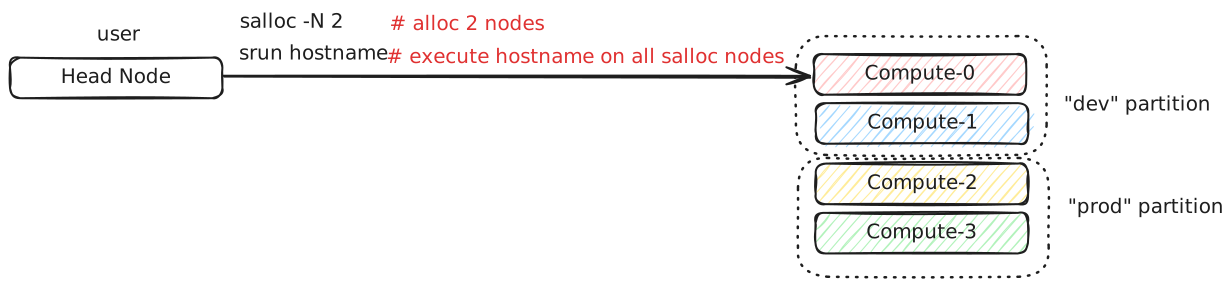
In some scenarios, users may need exclusive, interactive access to specific
nodes for experiments or testing. For instance, a researcher running benchmarking
tests might require all benchmarks to execute on the same fixed nodes to ensure
consistent and reproducible results. The salloc command is used to request and
allocate resources interactively. By using salloc, users can reserve a specific
number of nodes, ensuring that no other jobs are scheduled on them during the
experiment. This isolation helps avoid resource contention that could affect
benchmarking or performance measurements. For example, the following command
allocates 2 nodes for an interactive session:
# Allocte 2 nodes and submit a job on those allocated nodes
salloc -N 2
srun hostname
exit # release allocated nodes


# Allocate nodes on a specific partition
PARTITION=dev
salloc -N 2 -p ${PARTITION}
Note
salloc is particularly useful for:
Interactive debugging
Benchmarking and performance testing
Running exploratory workloads without writing a full job script
Cancel Jobs#
Users may occasionally need to cancel their jobs for various reasons. For example,
a cluster administrator may announce maintenance (such as upgrading system libraries),
requiring users to terminate running jobs. In other cases, a job might hang or
consume compute resources unnecessarily, making cancellation necessary. Slurm
provides the scancel command to terminate jobs cleanly. Example usage:
# cancel a job
scancel "${jobid}"

# cancel a job and disable warnings
scancel -q "${jobid}"

# cancel all jobs which are belong to an account
scancel --account="${account}"

# cancel all jobs which are belong to a partition
scancel --partition="${partition}"

# cancel all pending jobs
scancel --state="PENDING"

# cancel all running jobs
scancel --state="RUNNING"

# cancel all jobs
squeue -l | awk '{ print $ 1}' | grep '[[:digit:]].*' | xargs scancel

# cancel all jobs (using state option)
for s in "RUNNING" "PENDING" "SUSPAND"; do scancel --state="$s"; done
Submit Batch Jobs#
sbatch is a Slurm command used to submit batch jobs for execution on a
cluster. Unlike srun, which typically runs jobs interactively in the foreground,
sbatch is designed for running long, non-interactive workloads in the background.
This allows users to submit jobs without maintaining an active SSH session to the
cluster’s head node, making it ideal for large-scale or time-consuming tasks.
A typical workflow involves writing a Slurm job script containing job specifications (such as the number of nodes, time limits, and partitions) and one or more srun commands to execute programs. Submitting this script with sbatch queues the job, and Slurm automatically schedules it based on available resources. Example sbatch script:
#!/bin/bash
#SBATCH --nodelist=compute-[0-1]
#SBATCH --output=logs/%x_%j.out
#SBATCH --error=logs/%x_%j.out
#SBATCH --ntasks-per-node=8

master_addr="$(scontrol show hostnames | sort | head -n 1)"
srun hostname
srun torchrun \
  --nproc-per-node="$SLURM_NPROCS" \
  --nnodes="$SLURM_NNODES"
  --master-addr="${master_addr}" \
  --master-port=29500 \
  ${PWD}/train.py

# sbatch job.sh
Submit mpirun#
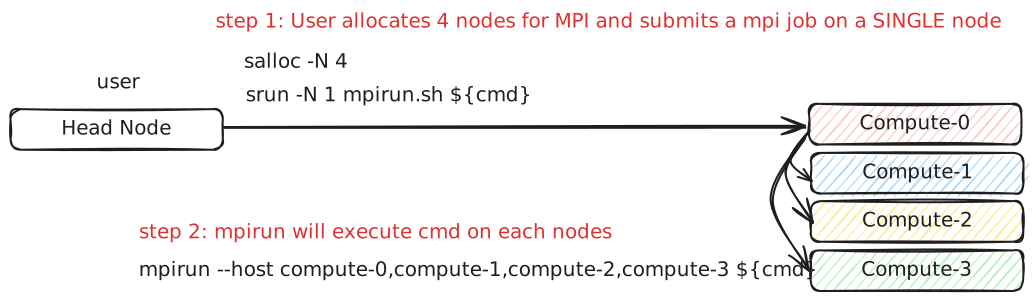
In some HPC environments, users may not be able to load the MPI module directly
on the head (login) node due to security restrictions, minimal software installations,
or site policies that restrict heavy workloads on login nodes. In such cases,
the workflow is to use Slurm to allocate compute nodes and launch mpirun from
within one of those nodes. From there, mpirun orchestrates the execution of the
MPI program across all allocated nodes.
#!/bin/bash

# Usage:
#
# rank_per_node=8
# salloc -N 4
# ./mpirun.sh ${rank_per_node} ${binary}

launch() {
  local rank_per_node="${1}"
  local args=("${@:2}")
  local arr
  local hosts
  local cmd

  mapfile -t arr < <(scontrol show hostnames | sort)
  OLDIFS="${IFS}"
  IFS=","
  hosts="${arr[*]}"
  IFS="${OLDIFS}"

  cmd="$(cat <<EOF

  mpirun \
  -N "${rank_per_node}" \
  --allow-run-as-root \
  --host "${hosts}" \
  --mca pml ^cm --mca plm_rsh_no_tree_spawn 1 \
  --mca btl_tcp_if_exclude lo,docker0,veth_def_agent \
  --mca plm_rsh_num_concurrent "${#arr[@]}" \
  --mca btl_vader_single_copy_mechanism none \
  --oversubscribe \
  --tag-output \
  ${args[@]}

EOF
)"

  # submit a mpirun job to a single node because mpirun will launch jobs on
  # other nodes. Therfore, it is required to spcify -N 1 when using srun.
  srun -N 1 bash -c "${cmd}"
}

launch "$@"
Submit Jobs with Enroot#
Sometimes, users need to run jobs with custom dependencies that differ from the cluster’s system-wide environment. For example, if the cluster is configured with NCCL 2.23 but a user wants to benchmark NCCL 2.27, it’s often impractical to ask administrators to upgrade or modify system libraries for a single experiment. One workaround is to create a custom container (e.g., Docker image) with the required dependencies and launch jobs from that environment. However, running containers in HPC environments often requires extra setup and special flags due to namespace isolation and security restrictions.
To simplify this process, Enroot provides
a lightweight alternative to traditional container runtimes. It allows users to
run isolated filesystem in an HPC setting with minimal overhead, similar to
chroot, while still granting direct access to system hardware (e.g., GPUs, interconnects).
This makes it ideal for ML and HPC workflows that require fine-tuned performance.
Building on Enroot, Pyxis is a Slurm plugin that enables launching jobs inside Enroot containers without writing additional wrapper scripts. Users can specify Enroot squash file and runtime options directly in their sbatch or srun commands, integrating container workflows seamlessly into Slurm job submission. The following snippet shows serveral to launch a job through Enroot and Pyxis.
# build an enroot sqsh file
$ enroot import -o "${output_sqsh}" "dockerd://${image}"

# submit a job with enroot
srun --container-image "${output_sqsh}" \
  --container-mounts "/fsx:/fsx,/nfs:/nfs" \
  --ntasks-per-node=8 \
  ${cmd}

# submit a mpi job with enroot
srun --container-image "${output_sqsh}" \
  --container-mounts "/fsx:/fsx,/nfs:/nfs" \
  --ntasks-per-node=8 \
  --mpi=pmix \
  ${cmd}
Job Status#
To monitor the status of jobs in a Slurm-managed cluster, users can use the
squeue command. This tool shows essential details about submitted jobs, such
as job IDs, job names, partitions, allocated nodes, and job states. Common job
states include:
RUNNING – The job is actively running on allocated resources.
PENDING – The job is waiting in the queue for resources to become available.
FAILED – The job has failed due to errors or unmet conditions.
If a job is stuck, fails, or behaves unexpectedly, you can terminate it with
the scancel command and resubmit after fixing the issue.
# check all Slurm jobs status
squeue

# check user's job status
squeue --user=${USER}
Reservation#
From an administrator’s perspective, it may be necessary to reserve specific
nodes to prevent Slurm from scheduling jobs on them. For example, nodes
experiencing hardware or software issues—such as network failures or disk
errors—should be reserved to avoid job failures. Reserving nodes allows
administrators to troubleshoot, repair, or perform maintenance without
interfering with active workloads. The following snippet demonstrates how to
create reservations through scontrol for nodes and check their reservation status.
# reserve nodes for a user to test
# - minute
# - minute:second
# - hours:minutes:seconds
# - days-hours
# - days-hours:minutes
# - days-hours:minutes:seconds
#
# ex: reserve all nodes 120m for maintenance
scontrol create reservation ReservationName=maintenance \
    starttime=now duration=120 user=root flags=maint,ignore_jobs nodes=ALL

# must specify reservation; otherwise, the job will not run
srun --reservation=maintain ping 8.8.8.8 2>&1 > /dev/null

# show reservations
scontrol show res

# delete a reservation
scontrol delete ReservationName=maintain

# drain nodes for maintenance. ex: nodes=compute-[01-02],compute-08
scontrol update NodeName=compute-[01-02],compute-08 State=DOWN Reason=”maintenance”

# resume nodes
scontrol update NodeName=compute-[01-02],compute-08 State=Resume
Accounting#
Slurm includes a powerful accounting and resource management system that allows administrators to control how computing resources are allocated and ensure fair usage across all users. Through this system, administrators can configure fairshare scheduling, job priority policies, and resource limits to prevent individual users or groups from monopolizing cluster resources for extended periods.
With fairshare, Slurm dynamically adjusts job priorities based on historical
resource usage, ensuring that users who have consumed fewer resources get higher
priority in the job queue, while heavy users may experience lower priority until
usage balances out. This helps maintain equitable access in multi-user HPC environments.
Administrators manage these policies through Slurm’s database-backed accounting
system (slurmdbd) and commands like:
# create a cluster (the clustername should be identical to ClusterName in slurm.conf)
sacctmgr add cluster clustername

# create an account
sacctmgr -i add account worker description="worker account" Organization="your.org"

# create an user and add to an account
sacctmgr create user name=worker DefaultAccount=default

# create an user and add to additional accounts
sacctmgr -i create user "worker" account="worker" adminlevel="None"

# modify user fairshare configuration
sacctmgr modify user where name="worker" account="worker" set fairshare=0

# remove an user from an account
sacctmgr remove user "worker" where account="worker"

# show all users
sacctmgr show account

# show all users with associations
sacctmgr show account -s
Job History#
sacct displays accounting data for completed and running jobs. This is essential
for analyzing job performance, debugging failed jobs, and tracking resource usage
over time. Unlike squeue which only shows active jobs, sacct can retrieve
historical job information from the Slurm accounting database.
# show recent jobs for current user
sacct

# show jobs from specific date range
sacct --starttime=2024-01-01 --endtime=2024-01-31

# show specific job details
sacct -j ${jobid} --format=JobID,JobName,Partition,State,ExitCode,Elapsed

# show detailed resource usage
sacct -j ${jobid} --format=JobID,MaxRSS,MaxVMSize,AveRSS,AveCPU

# show all fields
sacct -j ${jobid} --format=ALL

# show jobs with specific state
sacct --state=FAILED --starttime=2024-01-01

# common format for debugging
sacct -j ${jobid} --format=JobID,JobName,State,ExitCode,DerivedExitCode,Comment
Environment Variables#
Slurm sets various environment variables when a job runs, providing information about the job’s allocation and configuration. These variables are essential for writing portable job scripts that adapt to different resource allocations.
# Common Slurm environment variables
echo $SLURM_JOB_ID          # Job ID
echo $SLURM_JOB_NAME        # Job name
echo $SLURM_JOB_NODELIST    # List of allocated nodes
echo $SLURM_JOB_NUM_NODES   # Number of nodes allocated
echo $SLURM_NNODES          # Same as SLURM_JOB_NUM_NODES
echo $SLURM_NTASKS          # Total number of tasks
echo $SLURM_NTASKS_PER_NODE # Tasks per node
echo $SLURM_CPUS_PER_TASK   # CPUs per task
echo $SLURM_PROCID          # MPI rank (global)
echo $SLURM_LOCALID         # Local task ID on node
echo $SLURM_NODEID          # Node ID in allocation
echo $SLURM_SUBMIT_DIR      # Directory where job was submitted
echo $SLURM_GPUS            # Number of GPUs (if allocated)
echo $SLURM_GPUS_PER_NODE   # GPUs per node
GPU Jobs#
For machine learning and deep learning workloads, requesting GPU resources is essential. Slurm supports GPU scheduling through the Generic Resource (GRES) plugin. Users can request specific numbers of GPUs, GPU types, or GPUs per task.
# request 1 GPU
srun --gres=gpu:1 nvidia-smi

# request 4 GPUs
srun --gres=gpu:4 python train.py

# request specific GPU type (if configured)
srun --gres=gpu:a100:2 python train.py

# request GPUs per task
srun --ntasks=4 --gres=gpu:4 --gpus-per-task=1 python train.py

# sbatch example with GPUs
#!/bin/bash
#SBATCH --nodes=2
#SBATCH --ntasks-per-node=8
#SBATCH --gres=gpu:8
#SBATCH --cpus-per-task=12

srun python train.py
PyTorch Distributed Training#
Launching distributed PyTorch training jobs on Slurm requires coordinating
multiple processes across nodes. The torchrun launcher simplifies this by
handling process spawning and environment setup. Here’s a complete example for
multi-node distributed training.
#!/bin/bash
#SBATCH --job-name=distributed-train
#SBATCH --nodes=4
#SBATCH --ntasks-per-node=1
#SBATCH --gpus-per-node=8
#SBATCH --cpus-per-task=96
#SBATCH --output=logs/%x_%j.out
#SBATCH --error=logs/%x_%j.err

# Get master node address
MASTER_ADDR=$(scontrol show hostnames $SLURM_JOB_NODELIST | head -n 1)
MASTER_PORT=29500

# Set environment variables for distributed training
export NCCL_DEBUG=INFO
export NCCL_IB_DISABLE=0
export NCCL_NET_GDR_LEVEL=2

srun torchrun \
    --nnodes=$SLURM_NNODES \
    --nproc_per_node=8 \
    --rdzv_id=$SLURM_JOB_ID \
    --rdzv_backend=c10d \
    --rdzv_endpoint=$MASTER_ADDR:$MASTER_PORT \
    train.py --batch-size=32 --epochs=100
For containerized environments using Enroot and Pyxis, add --container-image
to run training inside a custom container with specific CUDA, PyTorch, or NCCL versions.
Use --container-env to pass environment variables into the container:
#!/bin/bash
#SBATCH --job-name=distributed-train
#SBATCH --nodes=4
#SBATCH --ntasks-per-node=1
#SBATCH --gpus-per-node=8
#SBATCH --cpus-per-task=96
#SBATCH --output=logs/%x_%j.out

MASTER_ADDR=$(scontrol show hostnames $SLURM_JOB_NODELIST | head -n 1)
MASTER_PORT=29500

srun --container-image=/path/to/pytorch-24.01.sqsh \
     --container-mounts="/data:/data,${PWD}:/workspace" \
     --container-workdir=/workspace \
     --container-env="NCCL_DEBUG=INFO,NCCL_IB_DISABLE=0,NCCL_NET_GDR_LEVEL=2" \
     torchrun \
        --nnodes=$SLURM_NNODES \
        --nproc_per_node=8 \
        --rdzv_id=$SLURM_JOB_ID \
        --rdzv_backend=c10d \
        --rdzv_endpoint=$MASTER_ADDR:$MASTER_PORT \
        train.py --batch-size=32 --epochs=100
Array Jobs#
Array jobs allow submitting multiple similar jobs with a single sbatch command.
Each job in the array runs independently with a unique SLURM_ARRAY_TASK_ID,
making it ideal for parameter sweeps, hyperparameter tuning, or processing multiple
datasets.
#!/bin/bash
#SBATCH --job-name=array-job
#SBATCH --array=0-9
#SBATCH --output=logs/array_%A_%a.out

# SLURM_ARRAY_JOB_ID  - Job array's master job ID
# SLURM_ARRAY_TASK_ID - Job array index (0-9 in this case)

echo "Array task ID: $SLURM_ARRAY_TASK_ID"
python train.py --seed=$SLURM_ARRAY_TASK_ID

# Submit array job
# sbatch array_job.sh

# Submit with step size (0, 2, 4, 6, 8)
#SBATCH --array=0-9:2

# Submit with max concurrent tasks
#SBATCH --array=0-99%10  # max 10 running at once

# Cancel specific array tasks
scancel ${jobid}_5      # cancel task 5
scancel ${jobid}_[1-3]  # cancel tasks 1-3
Job Dependencies#
Job dependencies allow you to control the execution order of jobs. A job can wait for another job to complete, succeed, or fail before starting. This is useful for creating pipelines where preprocessing must finish before training.
# Submit first job
JOB1=$(sbatch --parsable preprocess.sh)

# Submit second job after first completes successfully
JOB2=$(sbatch --parsable --dependency=afterok:$JOB1 train.sh)

# Submit third job after second completes (regardless of status)
sbatch --dependency=afterany:$JOB2 postprocess.sh

# Dependency types:
# after:jobid       - start after job begins
# afterok:jobid     - start after job completes successfully
# afternotok:jobid  - start after job fails
# afterany:jobid    - start after job completes (any status)
# singleton         - only one job with same name runs at a time

# Multiple dependencies
sbatch --dependency=afterok:$JOB1:$JOB2 final.sh
Resource Limits#
Setting appropriate resource limits helps ensure fair cluster usage and prevents jobs from consuming excessive resources. Slurm allows specifying memory, CPU, and time limits per job.
# Memory per node
srun --mem=64G python train.py

# Memory per CPU
srun --mem-per-cpu=4G python train.py

# CPU limit
srun --cpus-per-task=8 python train.py

# Time limit (job killed if exceeded)
srun --time=24:00:00 python train.py

# Exclusive node access (no sharing)
srun --exclusive python train.py

# sbatch example with limits
#!/bin/bash
#SBATCH --mem=128G
#SBATCH --cpus-per-task=32
#SBATCH --time=48:00:00
#SBATCH --exclusive
Debugging Failed Jobs#
When jobs fail, Slurm provides several tools to diagnose the issue. Common problems include out-of-memory errors, time limits exceeded, and node failures.
# Check job exit code and state
sacct -j ${jobid} --format=JobID,State,ExitCode,DerivedExitCode

# Common exit codes:
# 0     - Success
# 1     - General error
# 137   - OOM killed (128 + 9 SIGKILL)
# 143   - Time limit (128 + 15 SIGTERM)

# Check job's stderr/stdout
cat slurm-${jobid}.out

# Check why job is pending
squeue -j ${jobid} --format="%i %r"

# Common pending reasons:
# Resources    - Waiting for resources
# Priority     - Lower priority than other jobs
# Dependency   - Waiting for dependent job
# QOSMaxJobsPerUserLimit - User job limit reached

# Show detailed job info
scontrol show job ${jobid}

# Check node health where job ran
scontrol show node ${nodename}